
EmlakBase Pro Guide
The mobile app for agencies (Android and iOS); same account and data as the web panel.
1. Installation and Sign-In
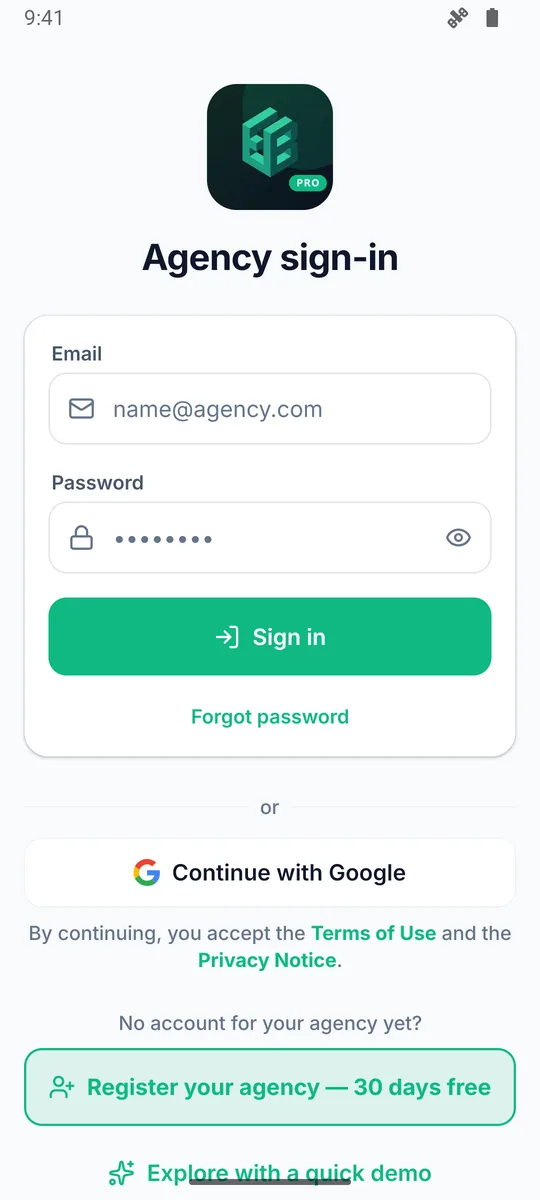
EmlakBase Pro is available on Google Play; the iPhone version is coming soon to the App Store. The app uses the same account as the web panel, no separate sign-up needed.
Sign-In
- Sign in with the email and password you use on the web panel, or with Google (and Apple on iPhone). If two-step verification is on, you are asked for the code from your authenticator app; there is no access to the account without it.
- If you don't have an agency yet, you can also sign up in the app: agency name, full name, email, password; accept the Terms of Use and the KVKK (personal data protection) notice.
- With "Quick Demo" you can explore an agency filled with sample data; changes made in the demo account are not saved.
Language
The app opens in Turkish or English based on your phone's language; you can change it in Settings.
Permissions
Role and module permissions come from the Team and Roles settings on the web panel: a tab or button you cannot see is a permission that is turned off for your role. Modules not included in your plan do not appear in the menu either.
2. Screen Layout and Navigation
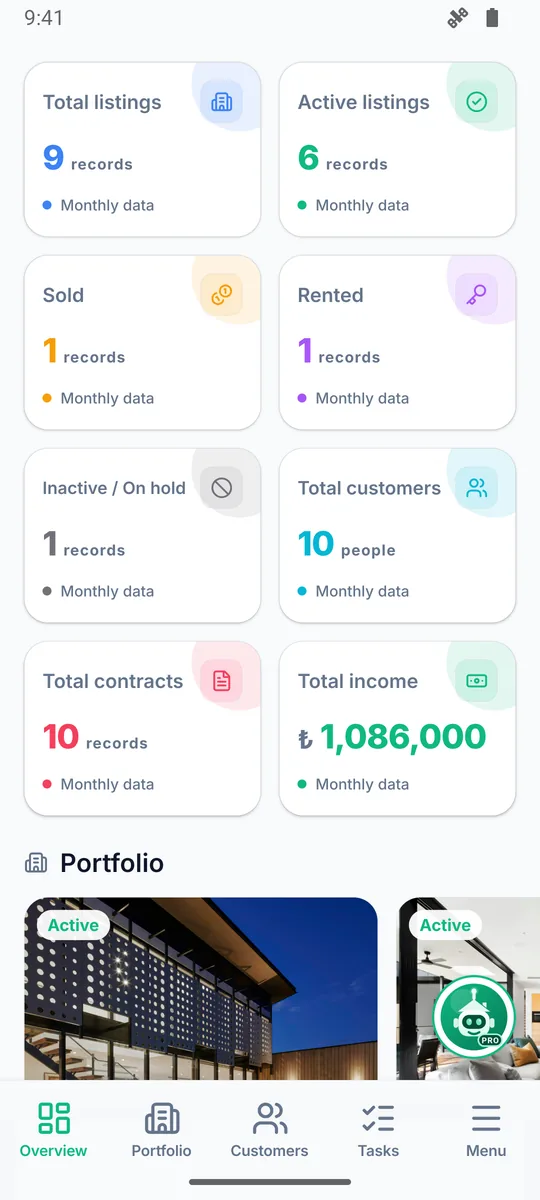
The bottom tab bar has Overview, Properties, Customers, Tasks and Menu; the other modules (Listings, Contracts, Income/Expense, Reports, Marketing, Approval Center, Settings) open from the Menu tab.
- Overview: Daily / weekly / monthly / yearly summary cards, latest records and quick actions.
- Search (magnifier): Search properties, customers, contracts and tasks from a single box.
- Bell: Notifications and the number of records pending approval.
- Pull down to refresh lists, automatic paging when you reach the end; filter with status chips.
3. Properties and Photo Upload
On the Properties tab you list and search your portfolio and create new records. The form has the same fields as the web panel: title, price and currency, type, listing type, status, location (pick on the map), rooms and area, features, title deed and valuation details.
Location and 3D Aerial View
- When you enter the address, the map drops a pin at the estimated location automatically. Correct it by dragging the pin, tapping the map or typing the latitude/longitude; if the address changes, use Locate from address.
- The 3D Aerial button on the property details opens the property on a 3D city model: 360° tour, zoom in/out and Street level for street view. Use it to show the surroundings to a client in the field.
- Imagery is Google aerial and street photography; small towns open in satellite view instead of a 3D model.
Photos Upload in the Background
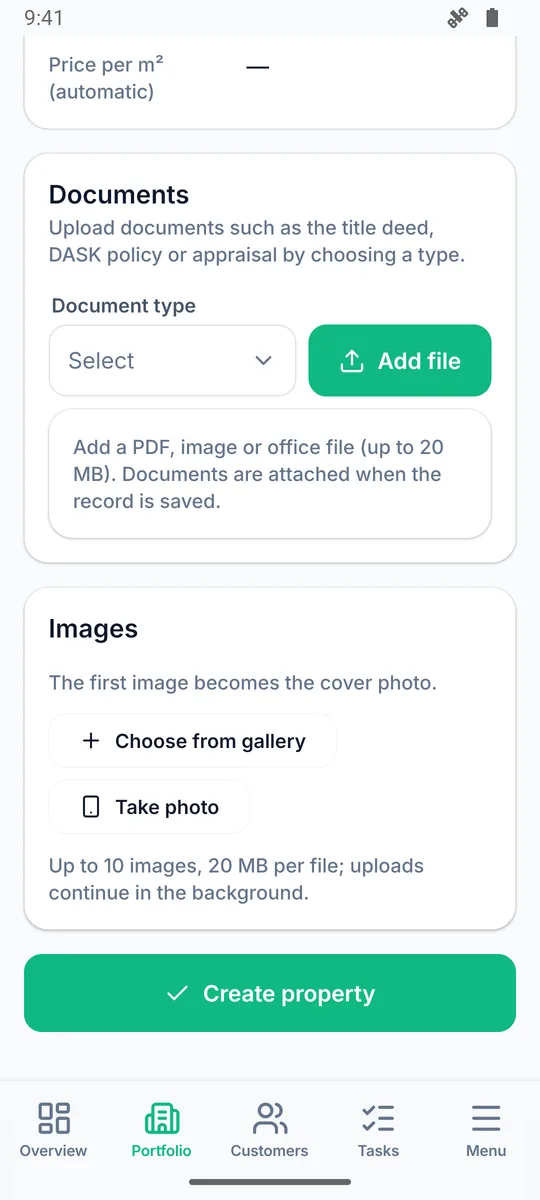
- Images you add with Choose from Gallery or Take Photo are queued right away and upload in the background while you keep filling in the form.
- Each tile shows its status: Queued, Uploading, Upload failed. For a failed image, retry or remove it.
- If you are offline, images upload when the connection returns. The record cannot be saved until all images are uploaded; the screen warns you.
- The first image is the cover photo; change it with "Make cover". Up to 20 MB per file and 10 images per record.
Commission Suggestion
The commission amount is suggested automatically from the price and listing type (using the rate in your agency settings); you can change it manually.
4. Listing Descriptions with AI
The two buttons under the description field appear if the AI studio is enabled in your plan, and each generation uses one credit from your daily AI allowance:
- Write with AI: Generates a fluent 400-900 character description from the title, type, location and listing details.
- Write from Photos: Looks at the first 4 uploaded photos and works visible features such as flooring, kitchen, balcony and view into the description; it also lists the features seen in the photos and suggests a title if the title is empty.
The generated text is a draft: read and edit it before saving. The AI does not invent features that are not in the listing details, and does not write what it is unsure of.
4.1. Pro Assistant and Voice Commands
Open it with the floating Assistant button in the corner of the screen. In the field, it searches your customers and portfolio by text or voice, brings up your appointments and fills in record forms for you.
- If the button covers something, press and drag it to move it; drop it on the target that appears in the middle of the right edge to hide it. While hidden, on the tab at the edge the mascot opens the assistant and the arrow brings the button back.
- For example: "What are my appointments this week?", "Create a viewing with Mr. Mehmet tomorrow at 14:00".
- Nothing is saved on its own: the form opens filled in, and you check and save it.
- Voice commands need the latest version of the app and microphone permission. Older versions show an update notice instead of the microphone.
- You can pause while speaking: your message is sent about 2 seconds after you finish; tap the microphone again to finish early.
- Your plan's daily, weekly and monthly allowances apply; Quick Demo runs the free public assistant, with the allowance counted per person.
- The assistant only sees your agency's data; what you write is kept for 90 days.
4.2. Market and Rent Analysis (PDF Report)
Ask the Pro Assistant in the field: "Run a market analysis for this flat" or "What would the rent be for a 2+1, 95 m² in Ataşehir?". The assistant gives the estimated sale and rent range, gross rental yield and payback period with their sources.
- Sources: live listings on the EmlakBase showcase, sites that publish per-m² prices for the area in Google search, and the Central Bank (TCMB) house price/rent index. You can also add a screenshot or the text of a listing from another site as a comparable.
- Report: the Report button in the answer creates a PDF with your agency name and opens the share menu; send it to your client via WhatsApp or email.
- If the same area was researched before, the result arrives in a few seconds.
- The result is an estimate; it is not a licensed (CMB/SPK) valuation report.
4.3. Smart Matching
Ask "Which listings suit Mr. Mehmet?" or "Is there a customer for this property?". Results come with a 0-100 match score and the reason; options slightly over budget (up to 20%), with one room fewer or in a neighbouring district are also listed with a lower score.
5. Working Offline
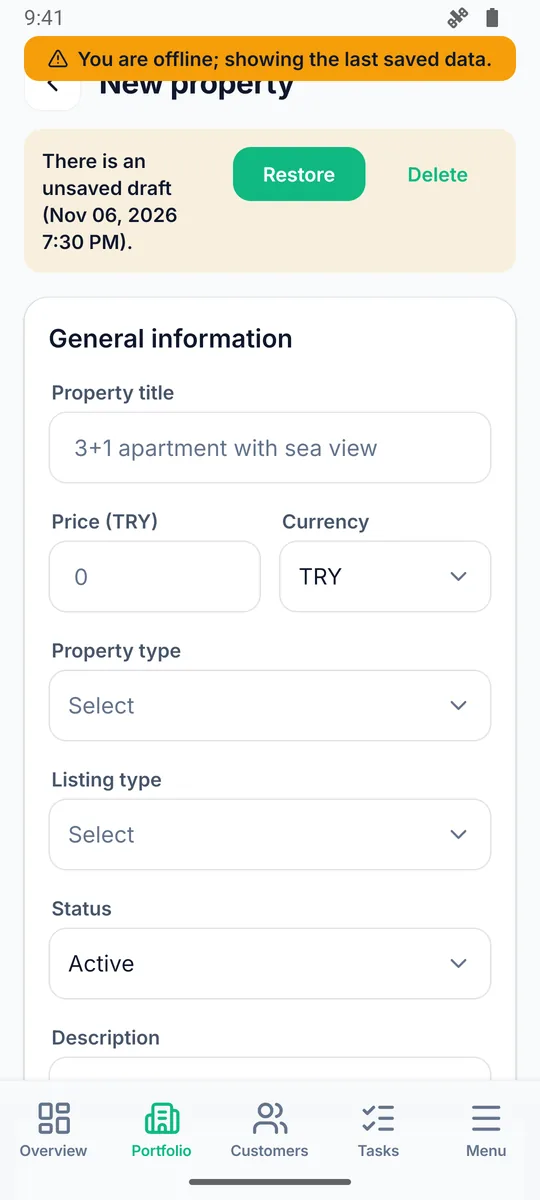
- When there is no connection, a yellow strip appears at the top; lists are served from the last saved data.
- Every change in the property form is written to the device as a draft. It is not lost even if you close the screen or the app closes; when you open the same record again, restore or discard it from the "Unsaved draft" strip.
- If you tap Save while offline, the record is queued; it is sent automatically when the connection returns and you see the result as a notification (if there is an approval workflow, it goes to approval).
- If sending fails after three attempts (e.g. a validation error), the record stays in the queue; open the form, fix it and save again.
6. Listings and Platform Publishing
The Listings screen shows your publishing records (EmlakBase showcase, agency website and platforms). Send a property to the channel you choose with Publish New Listing, and retry failed publications. Platform connections (Sahibinden, Hepsiemlak, Emlakjet and 20+ platforms) are set up on the web panel under Settings > Integrations.
7. Customers and Lead Pipeline
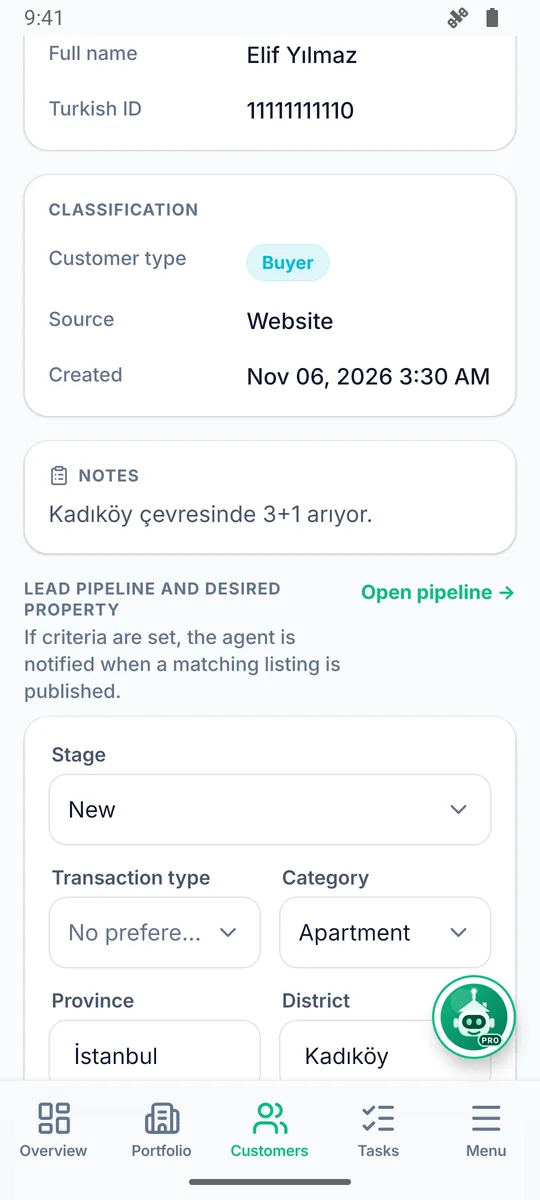
The customer card has contact details, the stage (New → Contacted → Qualified → Offer → Closing), search criteria and matching listings. When criteria are entered, the system lists matching listings from your portfolio; when a new matching listing is published, the agent is notified.
- Change the stage from the card; the history is kept on a timeline.
- When a member requests a viewing from the showcase, a lead is created automatically at the "New" stage in the listing's agency and linked to an appointment task.
- Reach the phone and email with a single tap from the card.
7.1. WhatsApp
On the Pro+ and Max plans, it works under Menu > WhatsApp once WhatsApp Business is connected from the web panel. Connection and template settings are on the web panel (guide).
- Inbox: the latest message per customer; those waiting for a reply are marked.
- Chat: reply to customers from the field; you can also reach the chat from the customer details.
- Sending listings and appointments: pick from the list; the customer receives a card with an image and a link button.
- The 24-hour rule: once 24 hours have passed since the customer's last message, only Meta-approved templates can be sent; the app says so on screen.
8. Tasks, Calendar and Appointment Link
- The Tasks list is filtered with status chips; overdue tasks are marked in red.
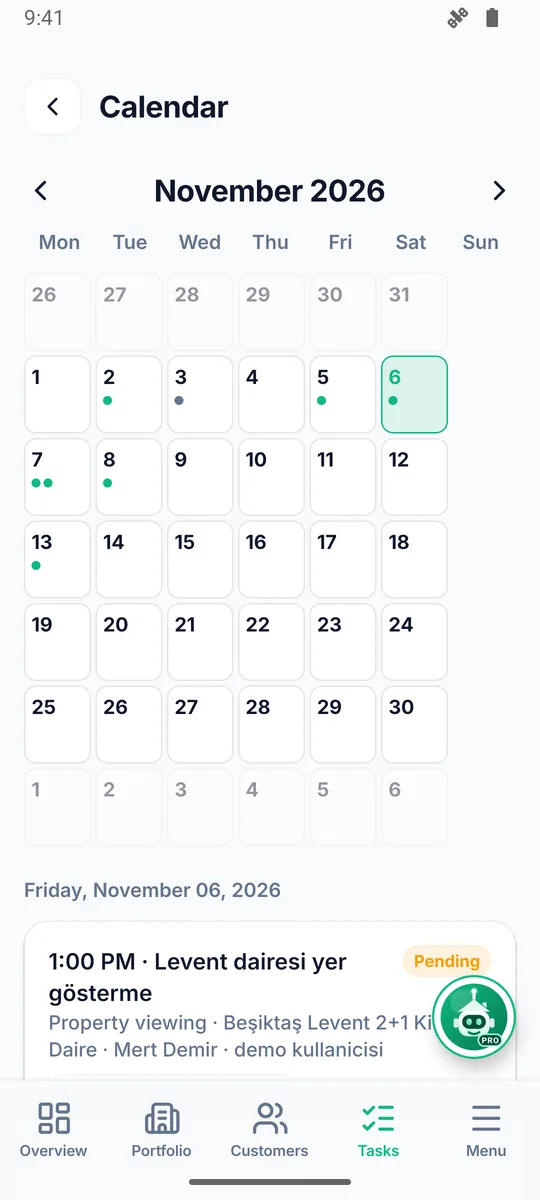
- The Calendar button opens a month view: select a day to list that day's appointments.
- The Google Calendar button on the task card adds the appointment to your phone's calendar; Customer link copies the address of the confirmation page you send to the customer via WhatsApp/SMS. When the customer confirms or says the time doesn't work, you get a notification.
- Calendar sync: Add your personal calendar link to Google Calendar / Apple Calendar as "Subscribe by URL"; appointments assigned to you come in automatically.
9. Contract Wizard
Prepare lease, sale, mandate, eviction undertaking and commission agreements step by step: property selection, parties, financial terms, fixtures and special terms. The contract is generated as a PDF, saved as a document and shared. In the demo account, the output is watermarked.
10. Income / Expense and Commission Payouts
- Income and expense entries are recorded with category, payment method, collection status, due date, VAT and document number; recurring entries (rent, maintenance fees) are generated automatically.
- The Commission Payouts screen shows agents' commission shares: a manager sees all agents and, with "Mark as paid", creates an expense entry for the same amount; an agent sees only their own shares.
- Share percentages are set on the Commission Split card in the income entry's edit screen (web).
11. Approval Center
In modules with the approval workflow on, your changes go to approval first. In the Approval Center you see pending records with a before/after comparison, and approve, return or reject them. The bell badge shows the pending count.
12. Reports
The General, Sales, Rental, Contract and Performance tabs summarize the reports on the web panel; currencies are converted with the current TCMB (Central Bank of Turkey) rate. Use the web panel for detailed charts and CSV.
13. Marketing and Posters
Generate social media text for a listing with AI, share it on your connected accounts (X, LinkedIn, Instagram) with a single tap, and create print-ready images from the poster templates. Account connections are set up on the Marketing page of the web panel.
14. Notifications
- Task assignments, approval decisions, appointment replies, new customer matches and listing questions arrive as push notifications; tap a notification to open the related record.
- Notification permission is requested on first launch; you can turn notifications off by category under Settings > Notifications.
- Agency owners and managers receive a weekly summary email every Monday (can be turned off from My Account).
15. Security and App Lock
- App lock: Under Settings > Security you can set a launch lock with fingerprint / face recognition.
- Two-step verification: turned on from the web panel (Settings > Security). While it is on, no data in the app can be accessed without the code.
- The session is kept in secure storage on the device; when you change your password on the web panel, mobile sessions are refreshed too.
- The demo account is virtual: no change is written to the database.
16. Account Deletion, Reports and Support
- Delete My Account: Settings > My Account > Danger Zone. Agents and managers close their own accounts by typing their full name; the records they created are not deleted but transferred to the agency owner. The agency owner closes the business with Settings > Subscription > Delete Business (confirmed by typing the agency name).
- Report incoming content: On the Listing Questions and Messages screens, use Report next to each item to report an inappropriate question/message to EmlakBase; it goes to the Support Center as a "Complaint" and the moderation team reviews it.
- Support and suggestions: From Menu > Help and Support > Support you can open a bug report, feature request, suggestion or complaint; your requests are answered by email.
17. Frequently Asked Questions
Can I do everything from the web panel in the app?
All daily work (records, edits, approvals, appointments, finance) is in the app. Agency settings, role permissions, platform API connections and detailed report exports are on the web panel.
What happens if I close the app while photos are uploading?
The queue is stored on the device; when the app opens again it picks up where it left off, and the images appear in the list when you open the same record.
The microphone button doesn't work.
Update the app to the latest version and turn on microphone permission in your phone settings.
I'm not getting notifications.
The app's notification permission must be on in your phone settings; battery saver mode delays notifications on some devices.
Help
You can open a request from the Support Center; for the web panel guide, see here.